
Blog
How to Factory Reset & Restore a Ledger Nano (S/X)

In short
Before you factory reset a Ledger Nano S or X, verify your recovery phrase and any passphrase: the reset erases the device's keys and can remove your only access. An unrecognized device needs a cable, USB port and app check, not a reset. Afterwards, set a new PIN and restore the existing phrase instead of creating a new wallet.
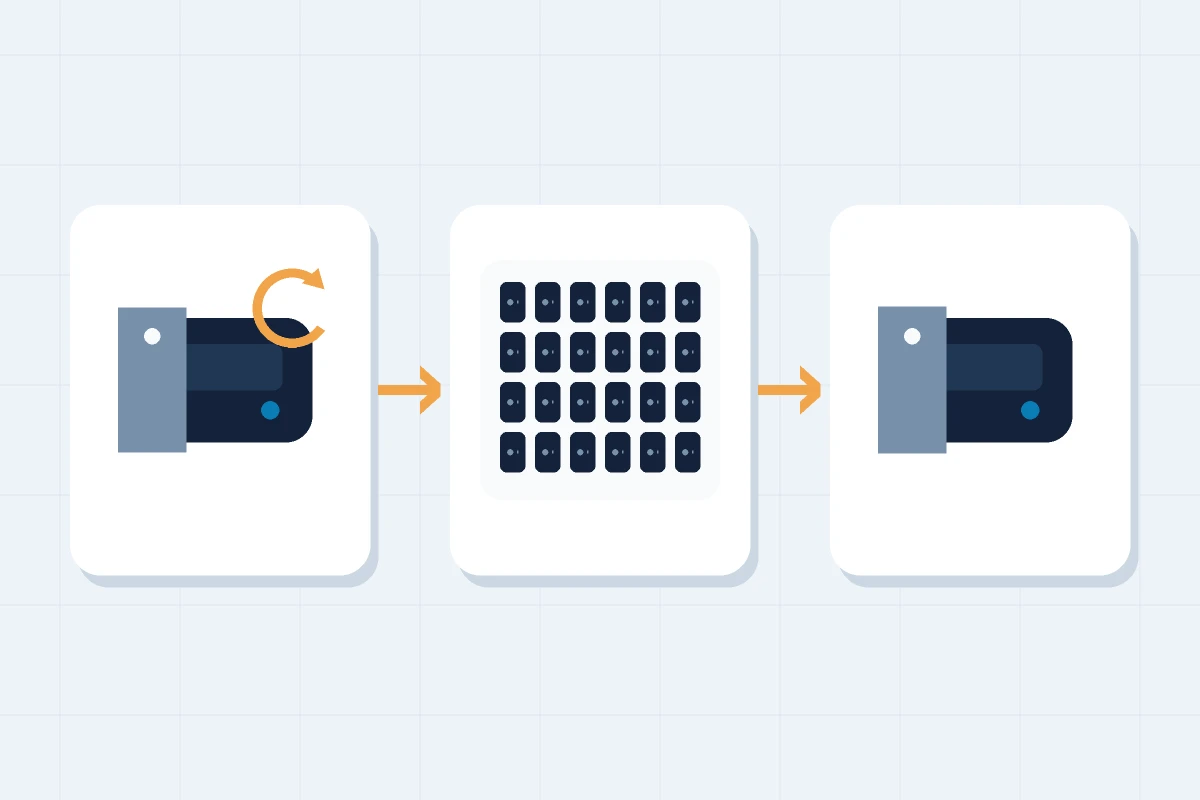
Factory resetting a Ledger is a one-way operation. Once you confirm it, every account on the device is wiped. The process itself is straightforward, but the step that is easiest to skip is the one that matters most — and it happens before you touch any settings.
Verify your recovery phrase before you do anything else
Your 24-word recovery phrase is the usual way to restore your wallet after a factory reset. Before resetting, verify that the phrase or another recovery option already in place is usable. For a Ledger Nano, install the Recovery Check app through My Ledger in Ledger Wallet (formerly Ledger Live), then open it on the Ledger device. Enter the words on the hardware itself, never in the app or on a computer. The app checks them against the device’s existing backup without resetting it. It cannot check a BIP39 passphrase, so if you use one, make sure your written copy of it is exact. If you find problems at this stage, such as missing words, words you're unsure about or a damaged card, work through the options for incomplete phrases before you reset, not after.
Device not recognized? That is not a reset problem
When a Ledger does not appear in Ledger Wallet, start with the connection. Ledger’s own USB troubleshooting guide starts with the same basics: other apps that might be holding the device, the cable and the port. Your keys are still on the device and your coins are still on the blockchain. A cable that will not carry data changes neither of those. Work through the quick checks before you go anywhere near the settings menu.
Start with the cable: some USB cables carry power but no data at all. Use the one that came in the box, or another you know has transferred files. Then change the port and plug straight into the computer, skipping hubs, docks and monitor passthroughs. Close anything else that might be holding the device: a second wallet app, a browser tab with a web wallet open, another copy of Ledger Wallet. Unlock the device with your PIN so it is awake, then restart the app, then the computer. If it still does not appear, try a different machine: if the Ledger shows up there, the fault is on the first computer, not the device.
Do not factory reset to fix a connection problem. A reset erases the keys on the device. Without a usable backup or another working device holding the same wallet, it can remove your last remaining access. When none of the checks help, the device needs repair or replacement. That is a support question, not a reason to wipe it.
How to factory reset a Ledger Nano S
On the Nano S, hold both buttons to open the Control Center, then go to Settings > Security > Reset all, using the two buttons to scroll and the combination press to select. Read the warning, select Reset all again and enter your current PIN to confirm. The device erases its keys, apps and settings and returns to factory state, showing the welcome screen. The alternative route, entering an incorrect PIN three times, also triggers an automatic reset without navigating the settings menu. Both routes erase the keys on the device, so verify your backup before using either one.
How to factory reset a Ledger Nano X
The reset uses the same menus as the Nano S: Control Center, then Settings > Security > Reset all, then PIN confirmation to proceed. The Nano S Plus works the same way.
The Nano X also has Bluetooth, which is not by itself a reason to reset it. Ledger states that the private keys never leave the secure chip, and that someone on the Bluetooth link could not extract them or make you sign a transaction you don’t approve. You can switch Bluetooth off in the Control Center and use the USB cable instead. The pairing is stored in your phone’s Bluetooth settings, so before you hand the device on or start fresh, remove the Ledger from every phone it was paired with.
Restoring your wallet after the reset
After the reset, select “Restore from recovery phrase” on the Nano. Follow the device’s setup prompts to choose and confirm a new 4–8 digit PIN and enter the existing recovery phrase. Choose the length that matches your backup: 12, 18 or 24 words. A phrase created by a Ledger device always has 24 words; the shorter options are for phrases from other wallets. Enter the words in their original order, directly on the device. It checks the words and checksum; a valid phrase must still match the original wallet. Do not reuse an exposed PIN.
Open Ledger Wallet after restoration, install the apps you need on the device and re-add your accounts. Your balances and transaction history load from the blockchain; nothing was stored locally that the reset could have removed.
If the phrase is rejected during entry
A rejected phrase has a small number of likely causes. One or more words may be spelled incorrectly: the device checks each entry against the BIP39 word list and won't accept words outside it, which catches typos but also rejects words you may have written down with errors. The words may be in the wrong order. Or the phrase may contain an error you weren't aware of, such as a word transcribed incorrectly at setup. Don't respond to a rejection by guessing substitutions on the device. Stop, note exactly where the issue occurred, and treat it as a partial-phrase recovery problem, not a device problem: guessing doesn't help and makes the situation harder to assess systematically. The approaches for a missing or uncertain word are covered here.
Restoring with a BIP39 passphrase
If your wallet used a BIP39 passphrase (the optional 25th word that creates a hidden wallet), restore the base 24 words first. The device opens the base wallet without the passphrase attached. Then open the Control Center and go to Settings > Security > Passphrase. Choose Attach to PIN to reach the passphrase accounts with a second PIN, or Set temporary to use them for one session. Enter the existing passphrase, check its spelling on the device screen and confirm with your main PIN. With Attach to PIN, restart the device and unlock it with the passphrase PIN, then add those accounts in Ledger Wallet. You need both the 24 words and the correct passphrase to reach the hidden wallet; entering the 24 words alone opens only the base wallet. If you've forgotten the passphrase, read the passphrase recovery guide before proceeding: there are approaches worth trying before assuming permanent loss.
After restoration: two things worth doing immediately
Update the firmware when Ledger Wallet prompts you. Do it through the official app only, never through links in emails or messages. And if your seed phrase is still stored on paper, use the restoration as a prompt to address it: paper fades, gets damaged, and doesn't survive what metal does. The options for more resilient seed phrase storage are covered here. Ledger’s Recovery Key card works only with its NFC touchscreen models, not with a Nano S or Nano X.
When the phrase doesn't work and you're stuck
If you can't complete the restoration because the phrase is rejected, incomplete, or you're not confident it's correct, stop and get a professional assessment rather than continuing to try variations on the device. We offer a free assessment with no commitment: describe the situation, what you have, and what you've tried, and we give you an honest answer about what's technically possible before any work begins.
Crypto Recovers never holds the coins behind your Ledger accounts. If a rebuilt phrase opens the wallet again, you move the funds yourself to a new wallet you set up and pay the agreed fee separately, as the contract sets out.
FAQ: Ledger factory reset
Will a factory reset delete my Bitcoin or crypto?
No. Your funds are on the blockchain, not on the device. The reset deletes the private keys stored on the device; restoring from your 24-word recovery phrase regenerates the keys and your balances reappear.
What happens if I reset my Ledger without my recovery phrase?
The reset erases the keys on that device. Another working device holding the same wallet, or a usable Ledger Recover backup set up beforehand for a supported model, may still provide access. Without a usable backup or another existing way to access the wallet, resetting can remove your last remaining access.
How many times can I enter the wrong PIN before a Ledger resets?
Three. After three consecutive incorrect PIN entries, the device erases its keys and settings. Restoring it then requires a usable backup.
Does restoring from the recovery phrase set a new PIN?
Yes. Restoration returns the device to a usable state and you choose a new 4-8 digit PIN during the process. The old PIN is gone with the reset.
How do I reset a Ledger if I forgot the PIN?
First verify that you have a usable recovery route. Three consecutive incorrect PIN entries reset the device without requiring the old PIN. You can then restore from the verified backup and choose a new PIN. If you have not confirmed a recovery route, stop before the third incorrect attempt. Our guide to a forgotten Ledger PIN covers the options.